Controls and Interface Layout
Left Sidebar
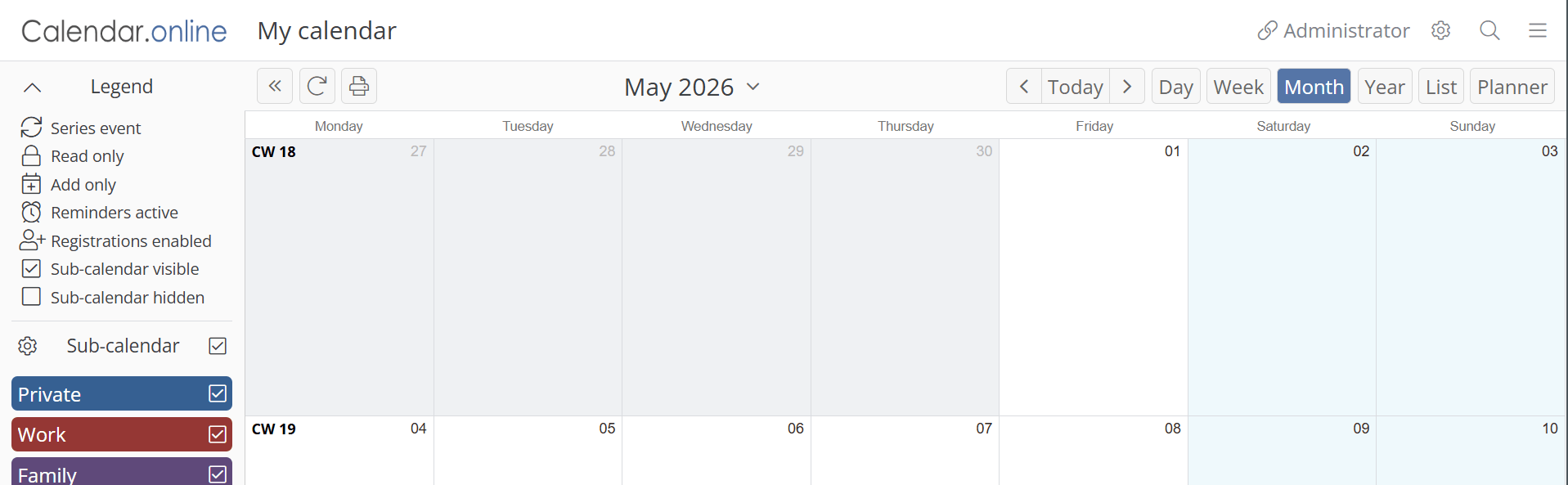
In the left sidebar, you will find the list of subcalendars. Subcalendars can be shown or hidden using the checkmark icon. In the mobile view, the sidebar is hidden by default and must be displayed using the button with the two arrows. You will also find the legend with information about the event icons in the sidebar. In the admin settings, you can configure the visibility of the legend and the sidebar for each access link.
Title bar
In the title bar, you will find the name of the calendar on the left. On the right side, you’ll see the name of the access link, the admin settings (gear icon), the event search (magnifying glass), and the calendar settings (3 horizontal lines)

Navigation Bar
Between the top Navigation Bar and the calendar view is the Navigation Bar. There, on the left, you will find the refresh button to reload the events. Next to it is the print function. In the middle is the currently selected time period. On the right side, there are three buttons to jump forward in time, to today, and backward. On the far right is the selection of views: Day, Week, Month, Year, List, and Planner View.

Admin Settings
You can access the Admin Settings by clicking the gear icon in the top right corner of the navigation bar. The Admin Settings can only be accessed via an admin access link.
Calendar Settings
You can access the Calendar Settings by clicking the hamburger icon (3 horizontal lines) in the top right corner of the navigation bar and then clicking Settings. These settings can be accessed via any access link regardless of permissions, unless the navigation bar has been disabled for that access link.
Subcalendars
In the left sidebar, you will find the list of subcalendars. You can use subcalendars to organize your appointments. Each appointment must be assigned to at least one subcalendar.
Appointment Search
Using the magnifying glass icon in the title bar, you can search all appointments in the calendar for a specific keyword.
Selecting the Time Zone
At the very bottom of the calendar, below the appointments, you can change the calendar time zone. The time zone is determined automatically, and you generally do not need to change it.