Overview
The import function allows you to import events from other calendars (e.g., Microsoft Outlook, Google Calendar, Thunderbird, or Apple iCal) into Calendar.online. This can be done either once or on a regular basis—via calendar feeds (ICS links) or calendar files (ICS format).
Depending on your calendar version (Basic, Plus, or Premium), the import interval can be reduced to as little as 15 minutes. This ensures that external events are always up to date.
Import holidays and vacation calendars
Open Calendar.online using the administrator link.
Click the gear icon in the top right corner to open the Settings.
Select the Import section on the left.
In the table of public calendars, click Import next to the desired calendar.
Select the sub-calendar into which the events should be imported.
Decide whether the import should be one-time (appointments are editable) or recurring (appointments are read-only). For a regular import, update intervals ranging from 15 minutes to annually are available.
-
Click on Import to add the holidays or vacation dates to your calendar. Regular imports are listed under the
Import Jobs in the Import tab. You can edit or delete these at a later time.
Import events from Outlook regularly
Open the web version of Outlook (Office 365) and open your Outlook calendar.
Click the gear icon and open the Settings.
Go to View all Outlook settings.
Navigate to Calendar > Shared Calendars.
In the “Publish a calendar” field, create an ICS link for the desired calendar. Copy this to the clipboard.
Open Calendar.online using the administrator link.
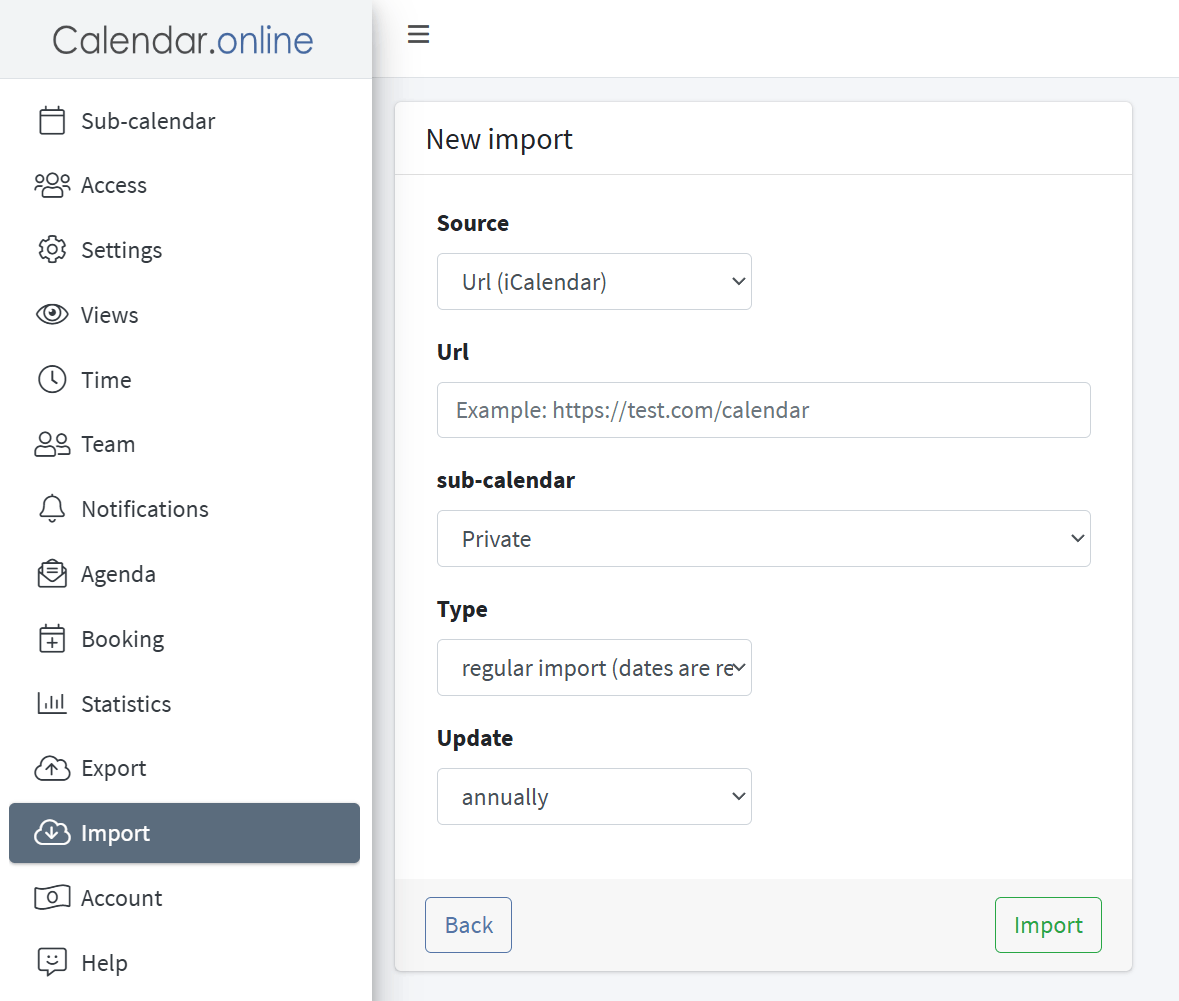
Go to Settings > Import and click on + New Import.
Paste the copied ICS link into the URL field.
Confirm the import by clicking Import—your Outlook appointments will now appear in Calendar.online.
One-time import from Google Calendar
Open Google Calendar in the web version.
Select the desired calendar on the left and go to Settings and Sharing.
Scroll down to Export Calendar and download the ICS file.
Unzip the file. The file extension must be either .ics or .ical.
Open Calendar.online using the administrator link.
Go to Settings > Import and click + New Import.
Select File (iCalendar) as the source.
Click Browse and upload the ICS file.
Confirm by clicking Import to add the events.
Regular Import from Google Calendar
Open Google Calendar in the web version and go to Settings.
Under Settings for my calendars, select the desired calendar.
Enable the Share publicly option.
Copy the public address in iCal format under the Integrate Calendar section.
Open Calendar.online using the administrator link.
Go to Settings > Import and click + New Import.
Paste the copied ICS link into the URL field.
Select the subcalendar, the import type, and the update interval, then confirm the import by clicking Import.
Regular Import from Apple Calendar
Sign in to iCloud and open Apple Calendar.
Click the Share icon to the right of the desired calendar.
Enable Public Calendar and copy the link that appears.
Open Calendar.online using the administrator link.
Navigate to Settings > Import and click + New Import.
Paste the copied link into the URL field.
Change webcal:// to http://.
Confirm the import.