Overview
The export function allows you to transfer events from Calendar.online to other calendars (e.g., Microsoft Outlook, Google Calendar, Thunderbird, or Apple iCal). This can be done via iCalendar feeds (ICS links) or ICS files.
Whether the events update automatically depends on the support provided by the external calendar.
Export via the Editor or Reader Link
Open Calendar.online via the Editor or Reader link.
-
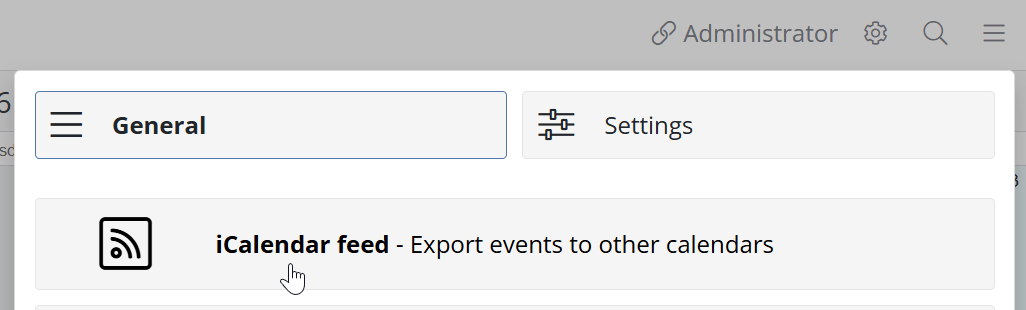
Click on the hamburger menu in the top right corner and select iCalendar Feed.
Select the desired sub-calendar.
-
Copy the URL and paste it into your external calendar—or download the .ics file.
Note: Using the parameters past_months and future_months, you can set how many months the export covers in the past and future. Select the lowest possible values to keep the data volume small.
Export via Settings
Open Calendar.online using the administrator link.
Click the gear icon in the top right corner for the Settings.
In the navigation on the left side, go to the Export section.
Select an access link. If no links are available, please create a new link in advance under Access
Click on View iCalendar Feeds
-
Click the blue button Copy Feed URL to Clipboard.
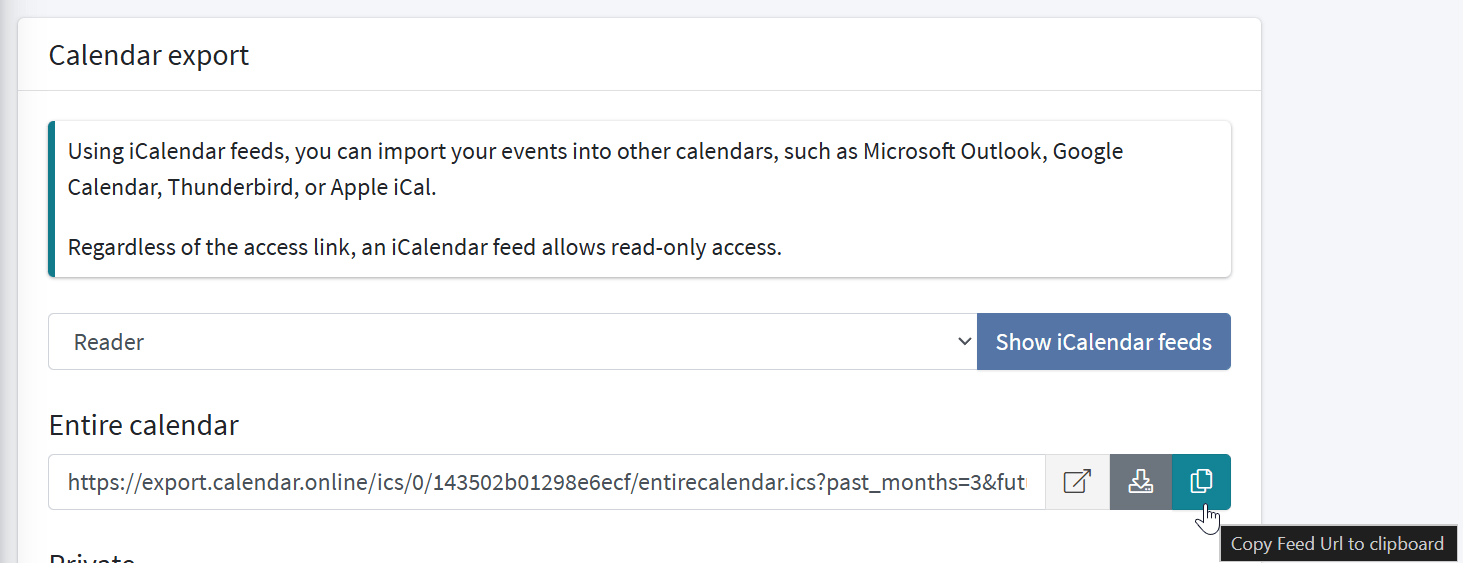
Note: Using the parameters past_months and future_months, you can specify how many months the export covers in the past and future. Select the lowest possible values to keep the data volume small.
Export to Excel
Exporting to an Excel file is a premium feature
Open Calendar.online via any access link.
Click on the hamburger menu in the top right corner and select Excel Export.
Select the desired time period and the sub-calendars to export.
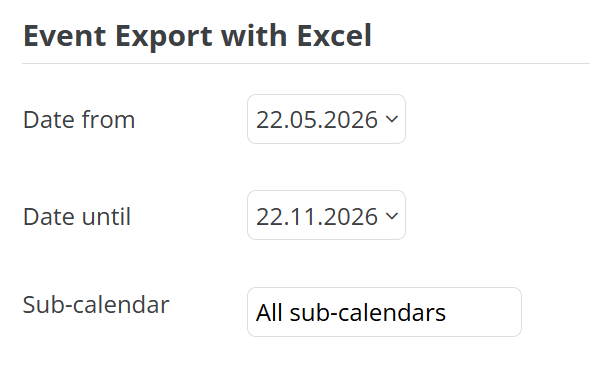
Click Download to save the file as an Excel file.
The Excel file contains all appointments with details and totals.